![DSI-small-square.png]](https://know.dsi-mfg.com/hs-fs/hubfs/Logos/DSI%20Logos/DSI-small-square.png?height=50&name=DSI-small-square.png)
CIMCO Edit Professional is now integrated with Fusion 360 through CIMCO Verify.
The integration functionality in CIMCO Verify for Fusion is able to export the tool table, stock model, workpiece, fixture, work offsets and more to CIMCO Edit and launch CIMCO Edit from within Fusion.
Download CIMCO Verify for Fusion 360 here: CIMCO Verify for Fusion
Full user guide available here: CIMCO Verify for Fusion User Guide
Understanding the ribbon bar buttons
After installation, the integration adds buttons to the Actions tab in the Fusion ribbon bar as well as in Utilities.
CIMCO Verify for Fusion adds 2 main ribbon bar buttons to Fusion, representing different simulation modes.
- CIMCO Verify (Internal simulation)
- CIMCO Edit (Standalone NC simulation)
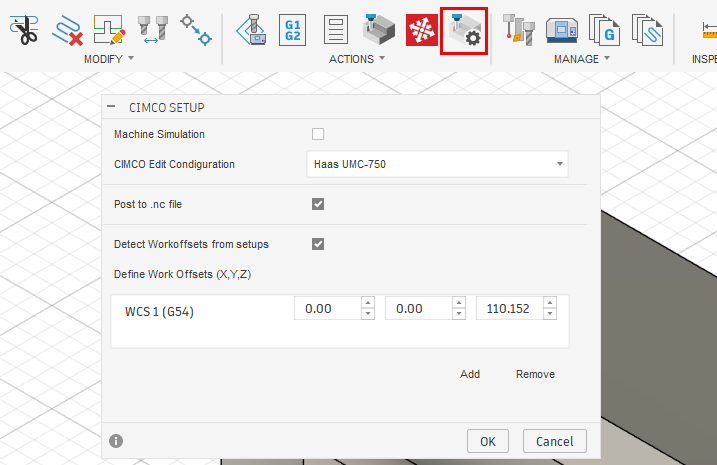
If a valid CIMCO Edit installation is detected, a third button CIMCO Verify Setup is also added. This allows you to:
- Select the CIMCO Edit machine configuration
- Enable machine simulation mode
- Set custom work offsets
- Configure additional simulation options

CIMCO Verify (Internal Simulation)
The CIMCO Verify button will launch the internal NCI simulation.
CIMCO Verify reads the toolpaths directly from each CAM operation in Fusion. The advantage of this method is that it takes very little time to load the toolpaths in CIMCO Verify. Internal simulation is incredibly fast and generally the most appropriate to use for stock simulation and for verification while programming each operation.
CIMCO Verify brings all advanced simulation features in CIMCO's simulation window directly inside Fusion. The CIMCO simulation window is famous for the GPU based instant stock model updates and responsive tool tracking.
CIMCO Verify Example:
CIMCO Edit (Standalone NC simulation)
The CIMCO Edit button is added to launch NC simulation in CIMCO Edit.
This requires a separate installation of CIMCO Edit and a valid CIMCO Edit Professional license.
NC code simulation in CIMCO Edit Professional can be initiated directly from within Fusion using the CIMCO Edit ribbon bar button.
CIMCO Edit Professional reads and simulates the NC code. With this method, you do not need a special machine simulation post processor, because you will use the specific control in CIMCO Edit instead, whether it is Fanuc 32i, Heidenhain iTNC530, etc. CIMCO Edit also allows users to manually edit the NC code and get instant simulation updates.
The integration functionality in CIMCO Edit Verify for Fusion is able to export the tool table, stock model, workpiece, fixture, work offsets and more to CIMCO Edit and launch CIMCO Edit from within Fusion.
Machine Simulation
Requires a separate installation of CIMCO Edit.
Machine simulation is supported in both the internal CIMCO Verify and CIMCO Edit NC simulation modes. When a valid CIMCO Edit installation is detected a third ribbon bar button is added to Fusion - CIMCO Verify Setup.
CIMCO Verify Machine Simulation:
CIMCO Edit Professional- NC Machine Simulation:
CIMCO Verify Setup
In CIMCO Verify Setup, you can select whether to launch Machine Simulation and which CIMCO Edit machine configuration you want to use.
CIMCO Verify uses a CIMCO Edit machine configuration even for internal machine simulation and is able to launch a CIMCO Edit machine directly inside Fusion. This means both modes are simulating on exactly the same setup, making the experience more seamless when it is time to simulate in CIMCO Edit.
Setup Dialog:
The following machine types are supported for CIMCO Verify for Fusion:
- Milling - vertical / horizontal
- 3 Axis
- 4 Axis
- 5 Axis
CIMCO Edit Professional supports the following additional types of machines:
- Turning on mill
- Turning on lathe
- 6+ axis (using collinear axes)
- Turrets and tool connectors/mounts
- Angle head aggregates
- Dual spindle and stock transfer operations
- Tailstock and steady rest
These will soon be fully supported in CIMCO Verify for Fusion when the internal simulation supports Fusion turning tools and operations, but until further notice, only milling is fully supported.
For further information, please refer to the full user guide here: CIMCO Verify for Fusion User Guide